
Workflows and editable UI prefabs
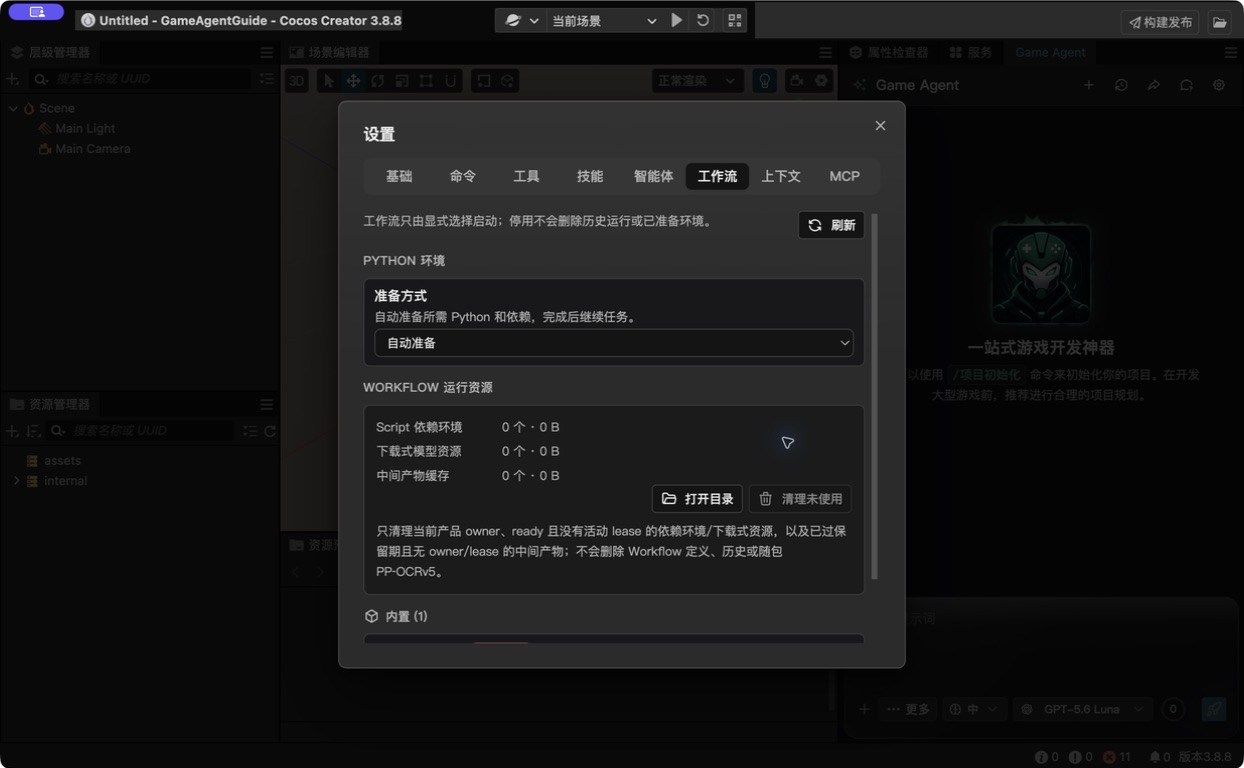
Prepare workflow dependencies, supply a reference and inspect the resulting Creator prefab.
Start a workflow
A workflow joins a form, model steps, scripts and outputs. Open Settings → Workflows, check that the workflow is enabled and prepare any listed dependencies. Select one workflow with / and send it. Supply reference artwork in its own input form. Run skills, specialist agents and ordinary image attachments in separate requests.
Generate an editable UI prefab
Choose UI image to Prefab and enter the screen purpose, dimensions, exact labels, references and output location in the run card.
Create a hand-drawn 720 × 1280 adventure menu with “Forest Quest” at the top, “Start game” and “Settings” below, and “v1.0” at the bottom. Keep ordinary text editable in Creator.
The workflow may need to prepare Python or script dependencies on first use. Its four image regions represent the composition, background, UI elements and ordinary text. The result can contain editable Labels, Sprites and basic Buttons. Add game-specific click handling afterward.
- Inspect the run card’s previews, output and warnings.
- Drag the resulting prefab into a test scene. Check hierarchy, text, transparent edges and resource references.
- Save and run the scene at the target aspect ratio.
- If the result is marked
review_only, inspect the failed checks. The run has not published that result to the project.
Where image-quality correction is enabled, a failed check may trigger up to three additional generation requests, affecting time and credit. Use only the checkpoints shown on the run card when resuming. Existing runs retain their original workflow definition.
The screenshot shows Game Agent 0.3.3 in Creator 3.8.8.
The lobby and battle preparation case study shows how to check a prefab transition and its stamina deduction together in Creator.